Hook Up PS5 Controller To PC With Bluetooth Or USB
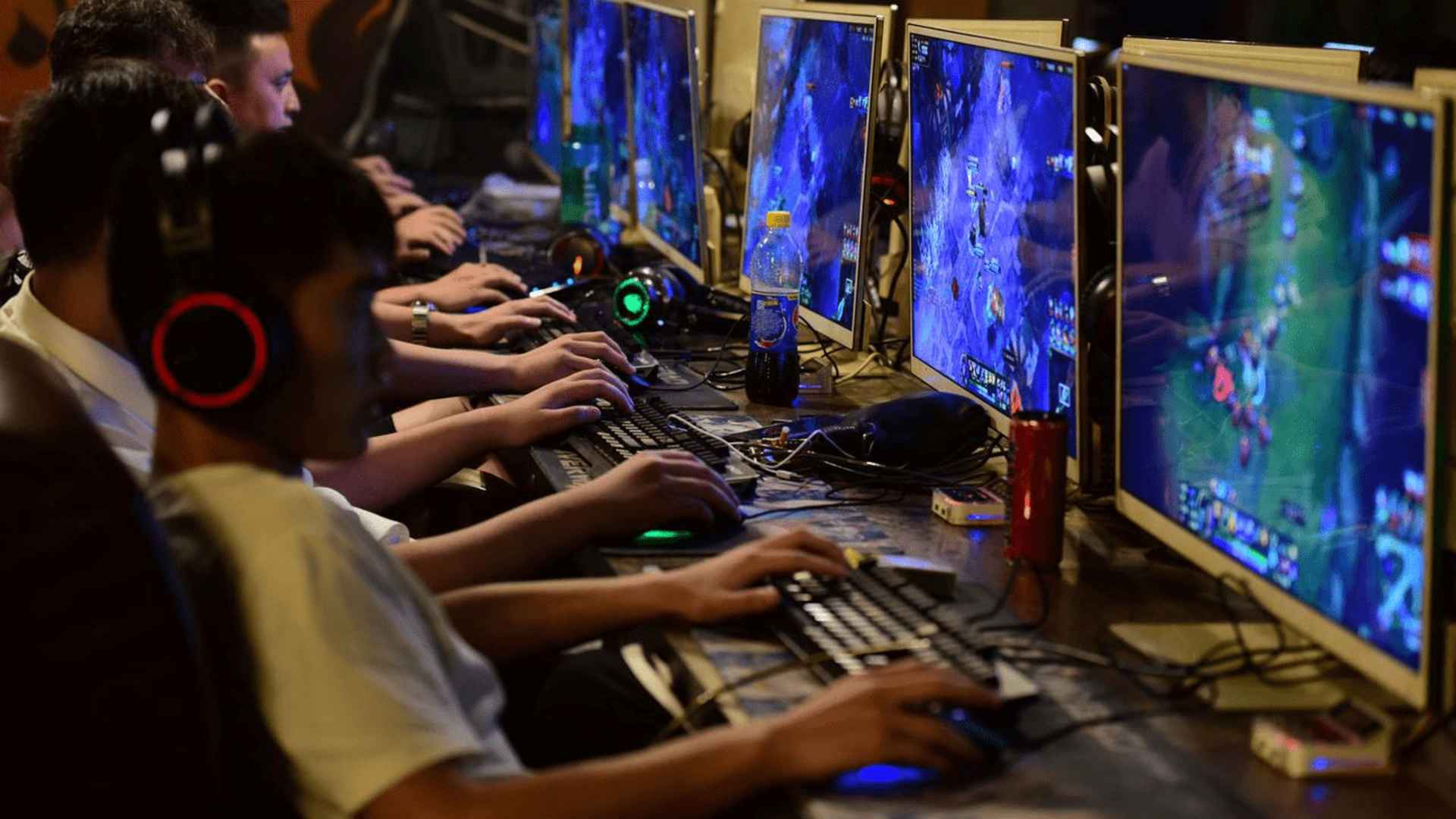
The PlayStation 5 DualSense controller has become a favorite hardware choice for modern gamers due to its exceptional ergonomics and premium build quality. Fortunately, PC players can easily tap into this advanced experience by linking the gamepad directly to their desktop or laptop setups. Understanding how to establish a stable connection ensures you can enjoy your favorite digital library with precision control.
Connecting via a Wired USB Connection
Using a physical cable remains the most reliable and straightforward method to hook up your peripheral to a computer. To begin, you will need a standard USB-C to USB-A or a dual-ended USB-C cable depending on your computer available input ports. Simply plug one end into the gamepad and the other directly into an open port on your rig.
Windows will instantly recognize the hardware and configure the necessary device drivers automatically in the background. A major advantage of this wired approach is that it completely eliminates input latency while keeping your internal battery fully charged during intense sessions. This stable interface provides the ideal setup for competitive multiplayer games where every millisecond matters.
Establishing a Wireless Bluetooth Link
For players who prefer a clean desktop presentation without cable clutter, utilizing your built-in motherboard Bluetooth chip is an excellent alternative. To initiate wireless pairing, open your Windows system settings menu and navigate directly to the bluetooth devices section. Ensure your internal wireless radio is activated and actively scanning for new hardware signal broadcasts.
Next, hold down the central PlayStation logo button and the top-left Create button on your DualSense simultaneously until the light bar begins flashing rapidly. Select the wireless controller option from your computer screen list to finalize the digital handshake securely. This method grants you absolute physical freedom to sit back and play comfortably from your couch or across the room.
Configuring Game Platforms for Full Compatibility
While Windows recognizes the basic button inputs naturally, standalone native support varies significantly between individual software titles. Popular launcher ecosystems like Steam offer comprehensive integrated configuration tools that map your gamepad layout automatically for thousands of different adventures. Activating the specialized PlayStation configuration support option inside the controller settings tab allows your hardware to translate complex menus seamlessly.
For games launched through alternative storefronts, utilizing external calibration utilities can help bridge any remaining mapping gaps. Ensuring your client is updated to the latest version helps maintain optimal stability and prevents random disconnection issues during long play sessions. Taking a few moments to verify these platform configurations guarantees a seamless transition across your entire digital collection.
Maximizing Advanced DualSense Audio and Haptics
To fully experience exclusive features like adaptive trigger resistance and highly detailed haptic feedback, a wired connection is typically recommended by developers. Many contemporary PC releases now build native support directly into their game engines to replicate the console feel. Connecting a dedicated wired headset directly into the integrated controller audio jack can also expand your local audio output options.
Keeping your peripheral firmware updated via the official Sony desktop update application helps maximize performance and maintains deep compatibility with newer titles. Balancing the convenience of rapid wireless setups with the absolute precision of a dedicated physical cable offers the ultimate freedom for computer gaming enthusiasts. Choosing the right connection method based on your current physical arrangement ensures the best possible interactive experience.